
Orders
Orders overview can be easily accessed by clicking on the Orders option, under the Production section from the top bar menu.
The default view will show all the orders (active and completed), sorted by their due date ascending. Orders that are not completed or cancelled are considered Active.
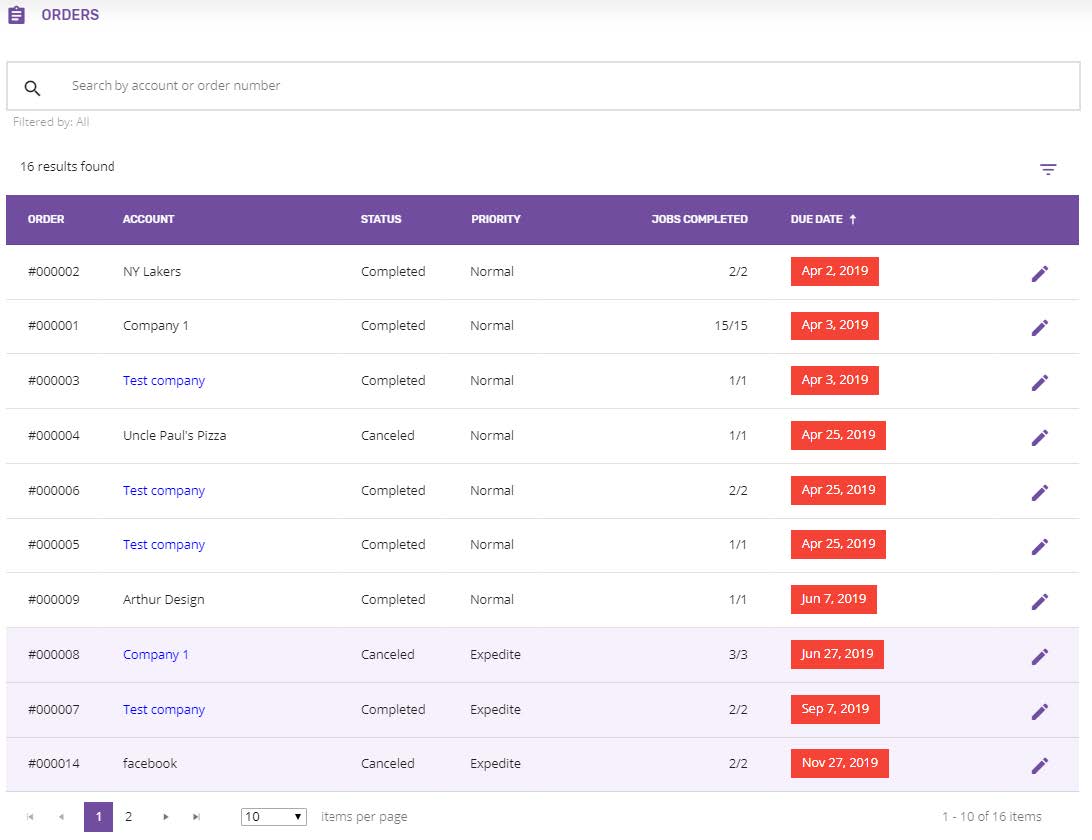
Sort orders
The orders can be sorted ascending or descending by any of the columns:
- Order number
- Account name
- Status
- Priority
- Job Completed
- Due date
It is possible to sort the list by just clicking on the column name. A down/up arrow will be displayed next to the column, indicating the descending/ascending sorting.
Search/Filter orders
The orders can be manually filtered by typing the account name/order number or part of it in the search box. The list will be refreshed immediately, showing the results found (number of results and the list of orders matching the search criteria).

Changing between Active, Completed or All can be done by using the default filters available in the drawer menu from the right. Clicking the arrow button will open the menu, where the current applied filter can be seen.
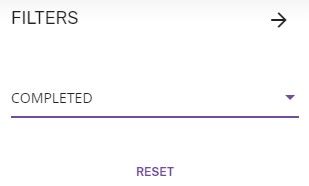
Clicking the RESET button will just reset any filters and display the default view (All).
Closing the menu is possible by clicking the Close button (Right arrow) or by simply clicking outside the menu.
View Order details
Order details page can be accessed from Quote details or Orders overview, by clicking the View button.
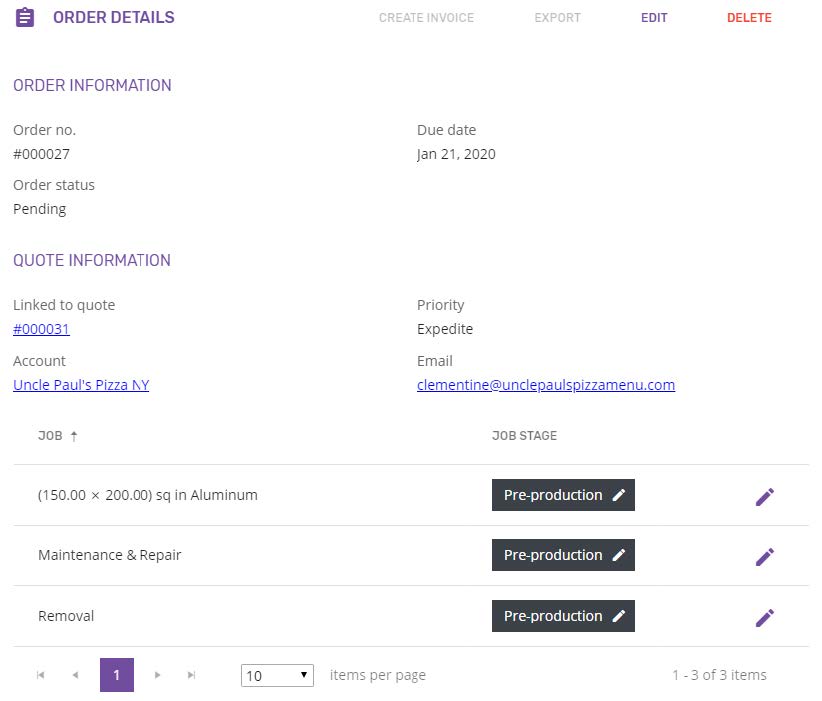
The information displayed on this page is divided in multiple sections:
Order information
- Order number
- Order status – when created, an order receives by default the “Pending” status. Once one of its jobs moves from Pre-production to other stage, the order’s status will change to “In progress”. When the last job moves to Completed stage (or is Cancelled), the order’s status will automatically change to “Completed”.
- Due date – this is the due date selected when creating the order
Quote information
- Linked to quote – a link to the quote from which the order was created. Clicking on the link will redirect to Quote details page.
- Priority – this can be normal or expedite
- Account – the account the quote was created for
- Email – the contact’s email address
Jobs list - an overview of all the jobs that belong to the order, having their name and stage displayed in a paginated grid
- Job name – is given by the product coming from the quote (size + product name)
- Job stage – all the jobs are initially in “Pre-production”. Once the work on a job has been started, it can be moved to the next job stage.
- the Job’s stage can be changed by simply clicking on the stage, which will open the Select stage pop-up.
- View (pencil) button – will open the Job details page.
- The jobs can be sorted by Job name or Stage
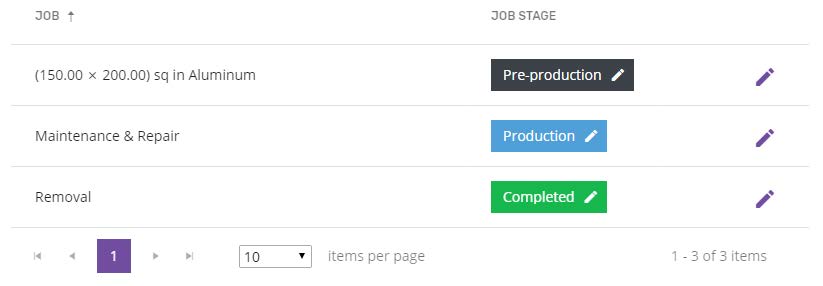
The EDIT button from the header will open the Edit order page, while the DELETE button will delete the order.
The buttons are displayed in the header depending on the order’s status:
- Create Invoice – Completed orders can be turned into an invoice
- Export – only the Completed orders can be exported
- Edit order – the button is available for “Pending” and “In progress” orders
- Delete – available only for orders “Pending”
- Cancel order – available for the orders that are “In Progress”
Export order
The button is grayed out until the order gets the Completed status.
Once completed, the EXPORT button becomes active and the order can be exported to an Excel file.
The exported file will contain:
- Order number
- Quote number
- Customer information (Account name, tax id number, contact name, email, address)
- Due date
- Priority
- List of items (products, finishing, services, discount, delivery fee, expedite fee): name, price, quantity, cost (price x quantity), tax, total (cost + tax), currency
- Cost subtotal
- Taxes
- Grand total
Cancelled jobs are not taken into account for the export or total price for the order.
Edit order
Edit order details screen can be accessed by clicking the EDIT button from Order details screen.
Only orders that are Pending or In Progress can be edited.
This allows changing the order’s due date.
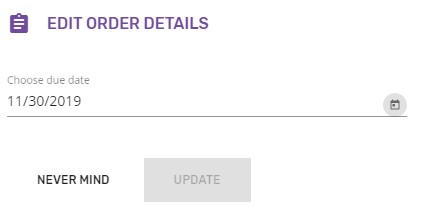
Clicking the UPDATE button will save the changes and return to Order details screen.
Updating the order’s due date will also be reflected on the jobs that belong to the order, also updating their due date.
Delete/Cancel order
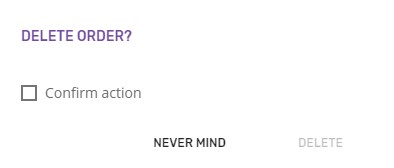
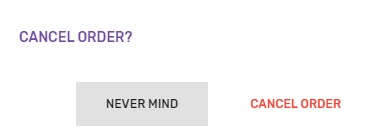
An order can be deleted/canceled by clicking on the DELETE/CANCEL order button from Order details page.
The DELETE button is displayed for the orders that have the “Pending” status. Once this will change to “In Progress”, the button will be replaced by CANCEL.
Confirmation is required for both delete and cancel order actions.
Create invoice
Only the completed orders can be turned into invoices, the button being grayed out until the order gets the Completed status. A tooltip displayed on mouse hover will inform why the Create invoice option is disabled.
Once the order is completed, the button becomes active, giving the possibility create an invoice.
Clicking the Create invoice button will go to New invoice page.
The information is displayed on Create invoice page is grouped in multiple sections:
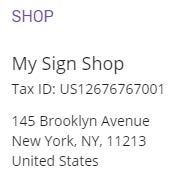
Shop details
The information about the shop is only displayed here, it cannot be edited.
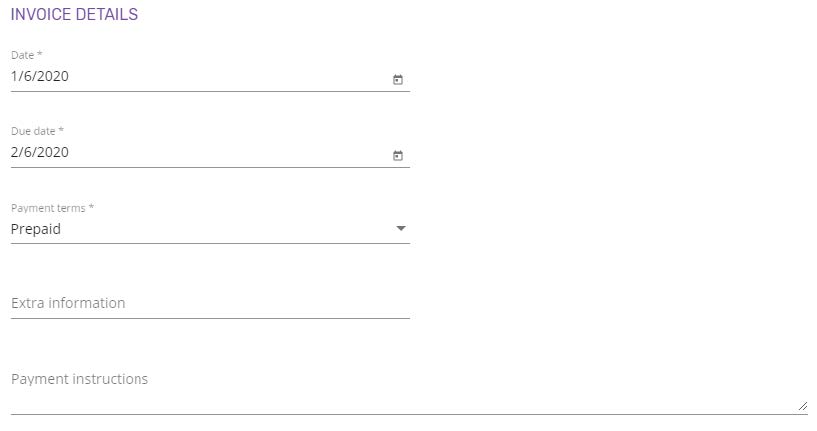
Invoice details
Date – it is prefilled with the current day and it represents the invoice’s date. This can be changed by using the date picker.
Due date – it is initially prefilled with the quote’s expiration date and it can be customized (any date in the future)
Payment terms – initially prefilled with the quote’s Payment term. It can be change with any of payment terms defined on the shop.
Extra information – optional field
Payment instructions – this is an optional field and it represents some extra information regarding the payment. It will be displayed on the invoice.
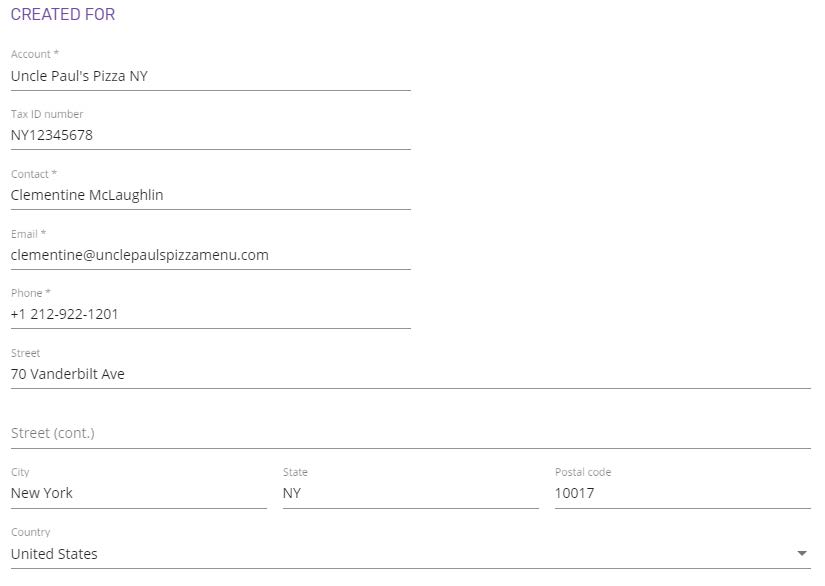
Created for
This section contains the same information as the quote, with the possibility to edit any field. If the quote has Contact information, this will be prefilled in the invoice. Otherwise, all the required information will have to be manually typed in.
Items
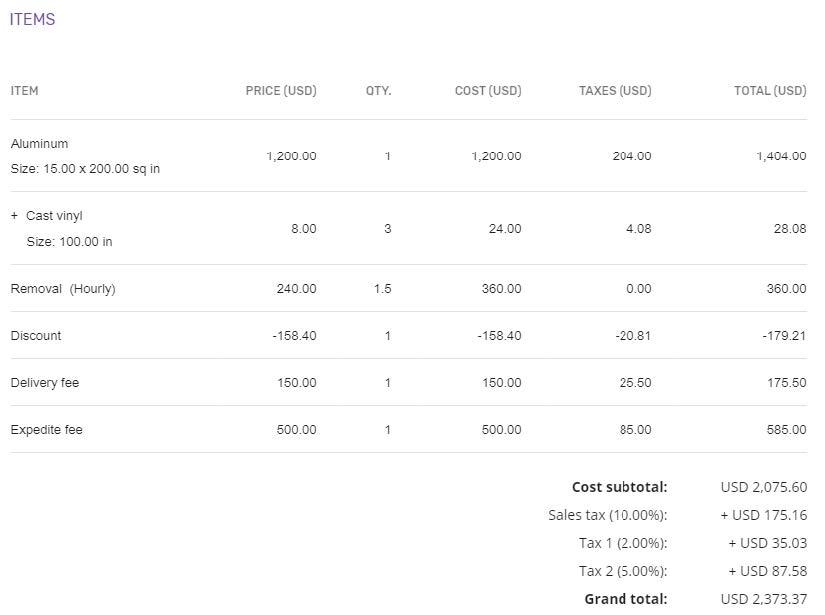
This section gives an overview of the products, finishing options and services that will be invoiced.
Each item from the list will have the following information displayed:
- Name
- Price – the item’s base price
- Quantity
- Cost – given by the Quantity x Base price
- Taxes
- Total
The invoice will be saved by clicking the ADD button.